
DigiLocker is a Government of India digital document platform that allows citizens to access, store, share and verify digital documents online. People can use it to access eligible documents such as marksheets, certificates, driving licences and vehicle registration certificates, depending on the services available from the issuing department.
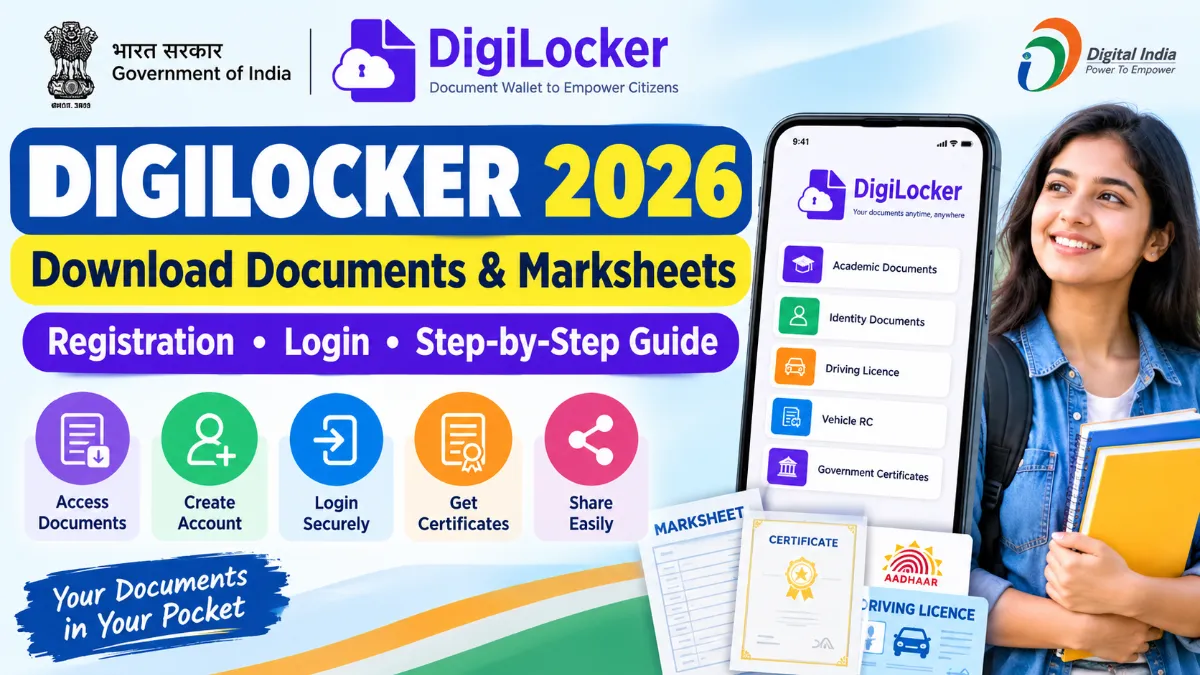
The digilocker account platform is part of the Digital India programme and is operated by the National e-Governance Division under the Ministry of Electronics and Information Technology (MeitY). The official DigiLocker website reported more than 70 crore registered users and over 900 crore issued documents as of its October 2026 update.
In this article, you will learn how to create a DigiLocker account, sign in, download documents, access educational certificates and understand the difference between issued documents and uploaded files.
Quick Overview of DigiLocker
ALSO READ:
| Details | Information |
|---|---|
| Platform name | DigiLocker |
| Purpose | Access, store, share and verify digital documents |
| Managed by | National e-Governance Division (NeGD) |
| Ministry | Ministry of Electronics and Information Technology (MeitY) |
| Programme | Digital India |
| Access | Official website and mobile app |
| Registration | Mobile number and identity verification, as required |
| Cost | Accessing issued documents is free under the core service |
| Official website | https://www.digilocker.gov.in/ |
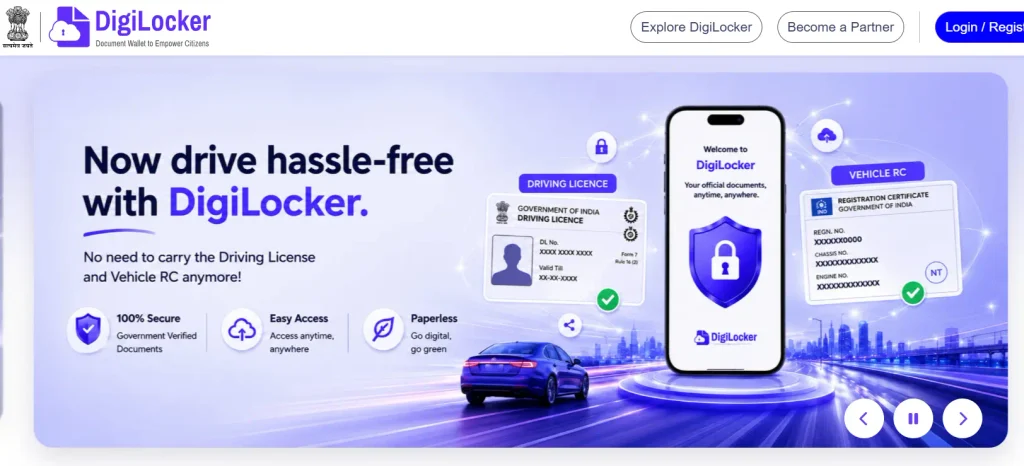
What Is DigiLocker?
DigiLocker is a digital document wallet that helps people access eligible government-issued documents without always carrying physical copies.
For example, a student may use DigiLocker to access an available marksheet or certificate. A vehicle owner may be able to retrieve an eligible driving licence or registration certificate. Other documents may be available depending on the issuing authority and the person’s records.
DigiLocker has two important functions:
- Issued Documents: Documents made available electronically by an integrated government department, board or other authorised issuer.
- Uploaded Documents: Files that users upload themselves for storage and access.
These two types of documents are not the same. A document fetched directly from its issuing authority can be digitally verified through the platform. A file uploaded by a user is not automatically authenticated simply because it is stored in DigiLocker.
Official website: https://www.digilocker.gov.in/
What Documents Can You Access Through DigiLocker?
The documents available depend on the issuing department, your records and the services integrated with DigiLocker.
Common categories include:
1. Educational Documents
- Class 10 marksheets and certificates, where available
- Class 12 marksheets and certificates, where available
- Academic certificates issued by participating institutions
- Other educational records supported by the relevant issuer
2. Identity Documents
- Digital Aadhaar and other eligible identity records, subject to availability
- Other supported identity documents
3. Driving and Vehicle Documents
- Driving licence
- Vehicle Registration Certificate (RC)
4. Government and Public-Service Documents
Other government certificates and records may be available through participating departments.
Important: Not every document is available for every person. Availability depends on whether the issuing authority has integrated the relevant service and whether the required records can be matched.
How to Create a DigiLocker Account
Follow these steps to create your account.
Step 1: Visit the official DigiLocker website at https://www.digilocker.gov.in/ or open the official DigiLocker mobile app.
Step 2: Select the sign-up or registration option.
Step 3: Enter the details requested on the registration screen, such as your name, date of birth and mobile number.
Step 4: Complete the required verification process. Depending on the account and service, this may involve an OTP or Aadhaar-based verification.
Step 5: Set up your security PIN or other required login credentials.
Step 6: Complete registration and sign in to your account.
Once your account is ready, you can explore the available document categories and fetch documents from participating issuers.
Registration tip: Enter your details carefully. Differences between your personal information and the records held by the issuing authority may prevent a document from being retrieved.
How to Sign In to DigiLocker
If you already have an account, you do not need to register again.
- Open the official DigiLocker website or app.
- Select the sign-in option.
- Enter the login details requested by the platform.
- Complete OTP verification if prompted.
- Enter your security PIN or complete the other requested authentication step.
- Open your dashboard to view available documents.
If you cannot access your account, use the official recovery options rather than creating multiple accounts unnecessarily.
How to Download Documents From DigiLocker
The exact steps can vary depending on the document and the issuing department.
- Sign in to your DigiLocker account.
- Open the document browsing or search section.
- Select the relevant issuing department or organisation.
- Choose the document you want.
- Enter the required details, such as your roll number, passing year or document number, if requested.
- Submit the details and follow the on-screen instructions.
- If the issuing authority has a matching record, fetch the document.
- Open the Issued Documents section to view the retrieved document.
- Use the available download or sharing option, if provided.
If a document does not appear, check the details you entered and confirm that the issuing authority provides that document through DigiLocker.
How to Download a Marksheet From DigiLocker
Students can use DigiLocker to access eligible educational documents issued by participating boards and institutions.
Follow these steps:
- Sign in to your DigiLocker account.
- Open the document search or browsing section.
- Find your education board or institution.
- Select the required marksheet or certificate.
- Enter the details requested by the issuer.
- Submit the information and retrieve the document if a matching record is available.
- Open the Issued Documents section.
- View or download the document using the available options.
For CBSE marksheets, students should follow the instructions issued by CBSE and DigiLocker. The required login details and retrieval process may differ depending on the student’s account and the service available.
Note: A marksheet will not necessarily appear automatically in every account. If it is unavailable, check the issuing board’s official website and instructions.
What Is the Difference Between Issued Documents and Uploaded Documents?
This is one of the most important things users should understand before using DigiLocker.
| Feature | Issued Documents | Uploaded Documents |
|---|---|---|
| Source | Issued electronically by an integrated authority | Uploaded by the user |
| Verification | Can support digital verification through the platform | Uploading alone does not authenticate the file |
| Examples | An eligible marksheet retrieved from a participating board | A PDF or photograph of an existing marksheet |
| Main purpose | Access and share authentic digital records | Store personal files for convenience |
Whenever possible, retrieve the document directly from the relevant issuing authority instead of relying only on an uploaded scan.
Are DigiLocker Documents Valid for Jobs and Admissions?
Documents issued through DigiLocker have legal recognition under the applicable Indian rules. The platform’s official terms state that documents issued or shared through DigiLocker are legally equivalent to physical originals under the applicable provisions.
However, candidates should understand an important distinction: an eligible digital document issued through DigiLocker is not the same as an ordinary file uploaded by a user.
If you are applying for a government job, college admission, counselling or another service:
- Check the recruitment notification or admission instructions.
- Prefer the digitally issued document from the Issued Documents section.
- Confirm the document meets the requirements of the organisation accepting it.
- Keep any additional documents required by the authority ready.
Do not assume that every uploaded scan or screenshot has the same status as an electronically issued and verifiable document.
Official reference: https://www.digilocker.gov.in/web/about/tos
How to Share a Document From DigiLocker
DigiLocker provides document-sharing options that allow users to share eligible documents with organisations or other recipients.
- Sign in to your account.
- Open the relevant issued document.
- Select the available share option.
- Follow the instructions shown on the screen.
- Review the recipient and sharing details before confirming.
Share documents only with trusted recipients and provide consent when required. Avoid posting private document links or personal information publicly.
What Should You Do if a Document Is Missing?
Sometimes a document may not appear in DigiLocker even when you have a physical copy.
Try the following checks:
- Confirm that you selected the correct issuing authority.
- Recheck your roll number, year, document number and other required details.
- Make sure your personal details match the issuing authority’s records.
- Check whether the department or institution provides the document through DigiLocker.
- Contact the issuing authority if the record itself is missing or incorrect.
- Use the official DigiLocker help and support channels if you continue to face technical problems.
DigiLocker cannot necessarily retrieve a document that is absent from the issuing authority’s database.
Official help and information: https://www.digilocker.gov.in/
DigiLocker Safety Tips: Avoid Fake Apps and Fraud
Since DigiLocker can contain important personal and educational documents, users should take care when signing in or sharing information.
Follow these safety tips:
- Use the official DigiLocker website or the genuine app from its authorised app-store listing.
- Never share your OTP or security PIN with another person.
- Do not enter Aadhaar or other personal details on unknown websites claiming to offer DigiLocker services.
- Avoid clicking suspicious messages about marksheets, certificates or account suspension.
- Review document-sharing requests before approving them.
- Log out when using a shared computer.
- If you encounter an account or security problem, use the official support channels.
Remember: A message claiming that your DigiLocker account will be blocked unless you click a link should be treated with caution. Visit the official website directly instead.
Frequently Asked Questions About DigiLocker
1. What is DigiLocker used for?
DigiLocker is used to access, store, share and verify eligible digital documents from participating government departments and other integrated issuers.
2. Is DigiLocker free to use?
The core service allows users to access issued documents without a fee. Optional value-added services, if offered, may have separate charges. Check the official terms before paying for any service.
3. Can I create a DigiLocker account using my mobile number?
Registration supports a mobile number and may require additional identity verification. Follow the current instructions displayed on the official registration page.
4. Can I download my Class 10 or Class 12 marksheet through DigiLocker?
Yes, if the relevant board has made your marksheet available and your details match the issuing authority’s records. Follow the board’s official instructions.
5. Are DigiLocker documents accepted for government jobs?
Eligible documents issued through DigiLocker have legal recognition under applicable rules. However, candidates must follow the document requirements and instructions in the particular recruitment notification.
6. What is the difference between an issued document and an uploaded document?
An issued document is provided electronically by an integrated issuing authority. An uploaded document is a file supplied by the user and is not automatically verified simply because it is stored on DigiLocker.
7. What should I do if my marksheet is not available?
Check your details and the correct issuing authority. If the record is still unavailable, consult the board or institution’s official website and contact its support team if necessary.
8. Can I use DigiLocker on my mobile phone?
Yes. You can access DigiLocker through its official website and mobile app.
9. Is it safe to use DigiLocker?
Use the official service, protect your OTP and security PIN, and share documents only with trusted recipients. No online platform should be treated as risk-free, so follow good account-security practices.
10. Where can I access DigiLocker?
Visit the official website: https://www.digilocker.gov.in/